LEARN · PushSense 0.2.4
See it work.
Then set it up.
Everything you need in one place: the demos, how Buddy mode works, a three-minute quick start, Smart mode, the films from the feed, and the questions people ask before installing. The full reference lives in the user guide.
Demo
Two ways to talk to it.
Click the buddy and drag the words where they go, or hold a key and let the text land at your cursor. Both are real screen recordings; the windows in the buddy clips are mock-ups so nothing private is on screen.
Buddy mode
Click. Talk. Drag.
Buddy mode is for the moments when you want to say something first and decide where it goes later. It is off by default and takes one switch to turn on. Your hotkey keeps working exactly as before.
- 01
Turn it on
Menu bar → Buddy mode (click the orb to talk). A small pearl appears in the corner of your screen. Drag it wherever you like; Move the buddy back to the corner is in the same menu if you lose it. After updating to 0.2 the app shows this once, with a button that turns it on.
- 02
Click the pearl and talk
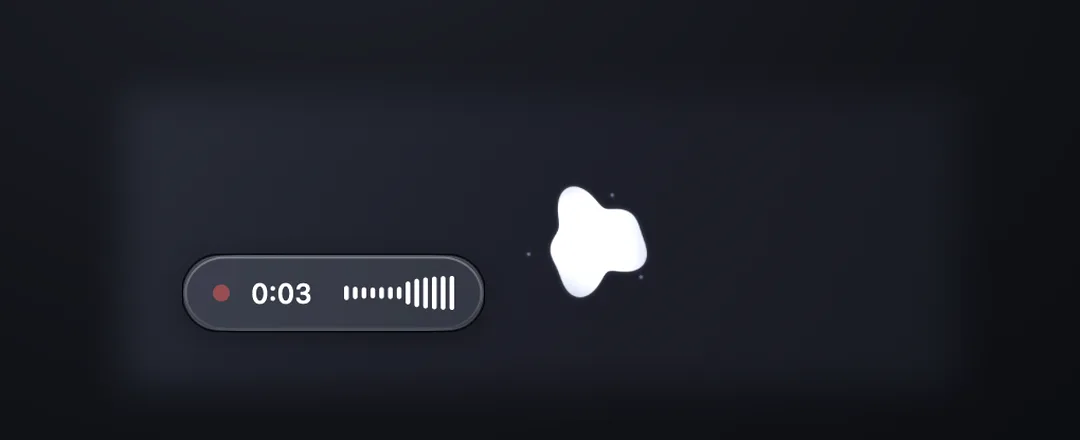
The pearl melts into the orb, and a capsule beside it shows a red dot, a timer, and your voice. Stop talking for a second and a half and the take ends on its own. If you would rather end it by clicking again, switch off Stop after silence in the menu, or hover the pearl and tap the ear.
- 03
Drag the words where they go
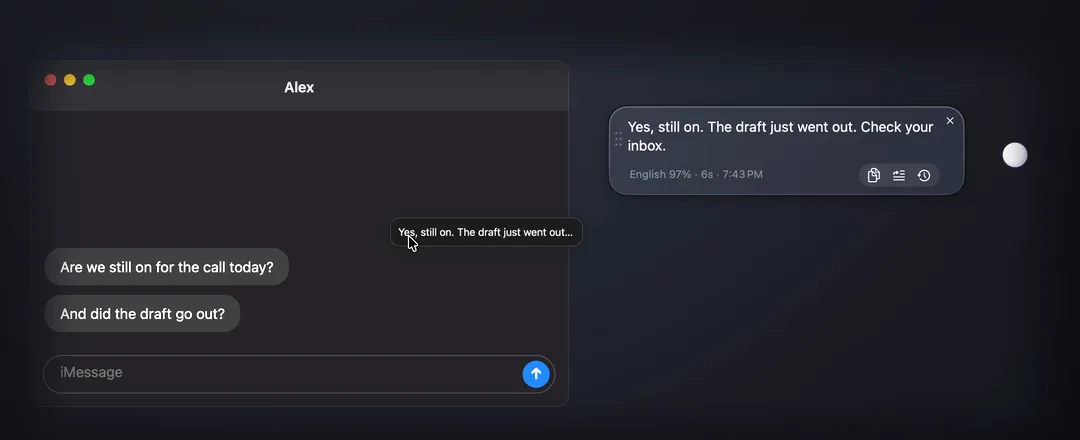
The transcript lands in a glass bubble next to the orb. Press on the text, drag it into any window that takes text, and let go: it lands at the drop point. Hover the bubble for copy, paste into the focused app, history, and close. Left alone for 25 seconds it folds into a one-line pill; hover to unfold it.
- 04
Hover the pearl for history
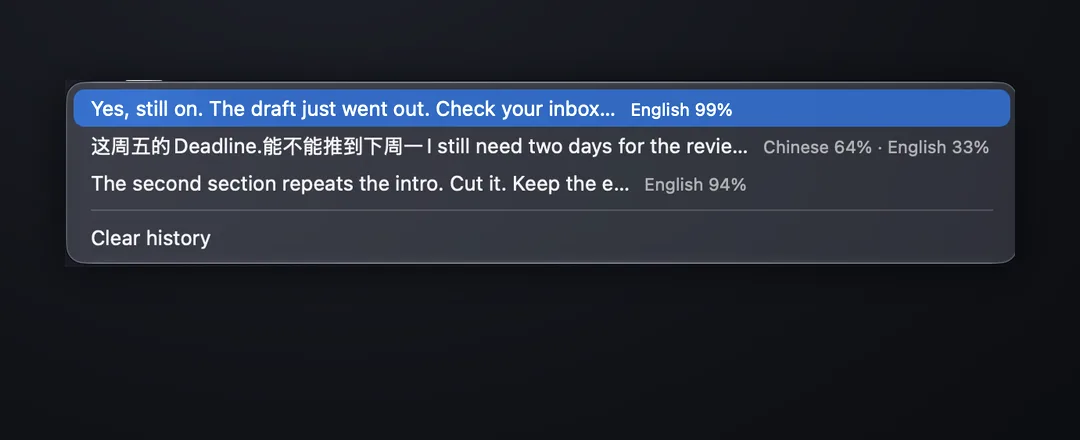
Three buttons fan out over the pearl: history, the auto-stop switch, and the menu. History keeps your last 50 takes with the language mix the detector heard for each. Pick one and it is back in the bubble, ready to drag. Right-clicking the pearl opens the same list; Clear history is at the bottom.
Want buddy takes to paste straight into the focused app, like a hotkey take? Menu bar → Buddy output → Paste into the focused app. Every option is explained in the user guide.
Quick start
Three minutes, three steps.
The built-in tutorial walks you through this on first launch. Here it is in case you skipped it.
- 01
Install
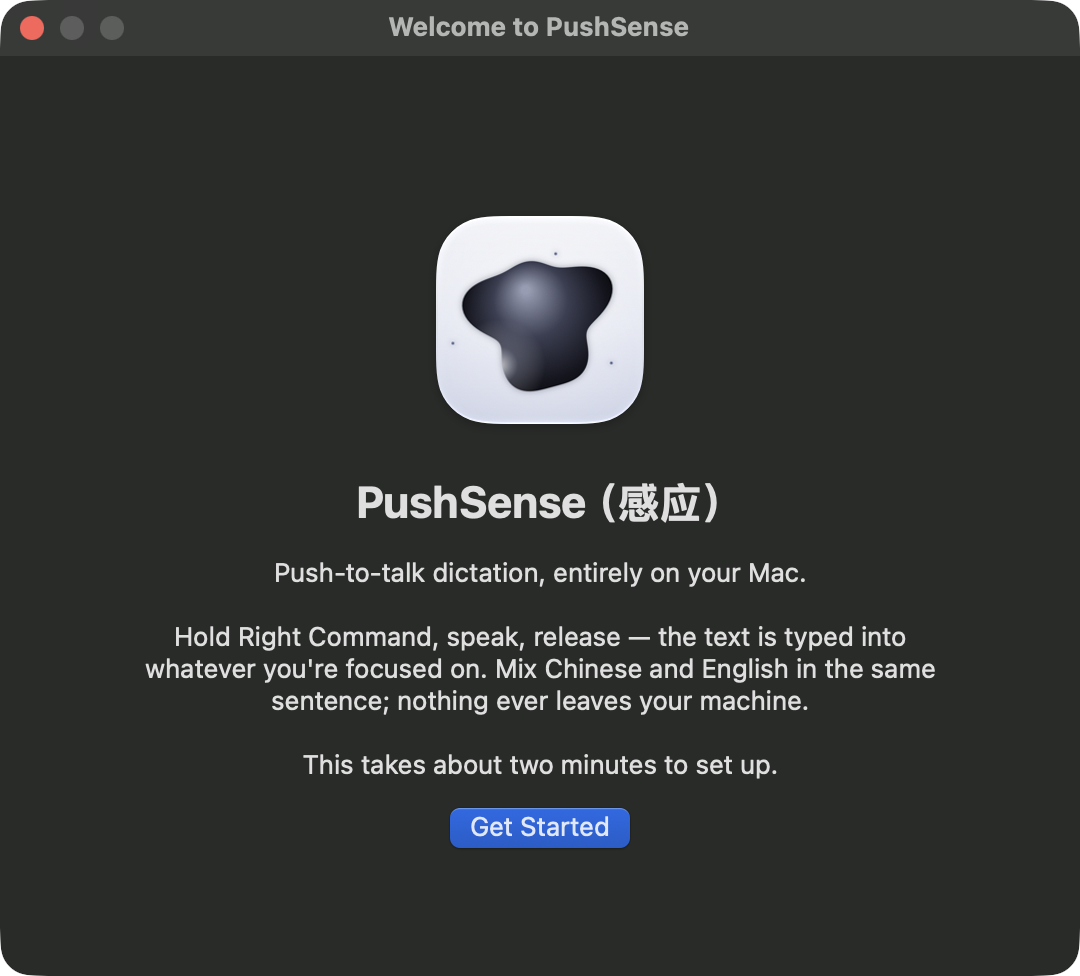
Download the DMG, open it, and drag PushSense into Applications. It is signed with Developer ID and notarized by Apple, so it opens without warnings.
- 02
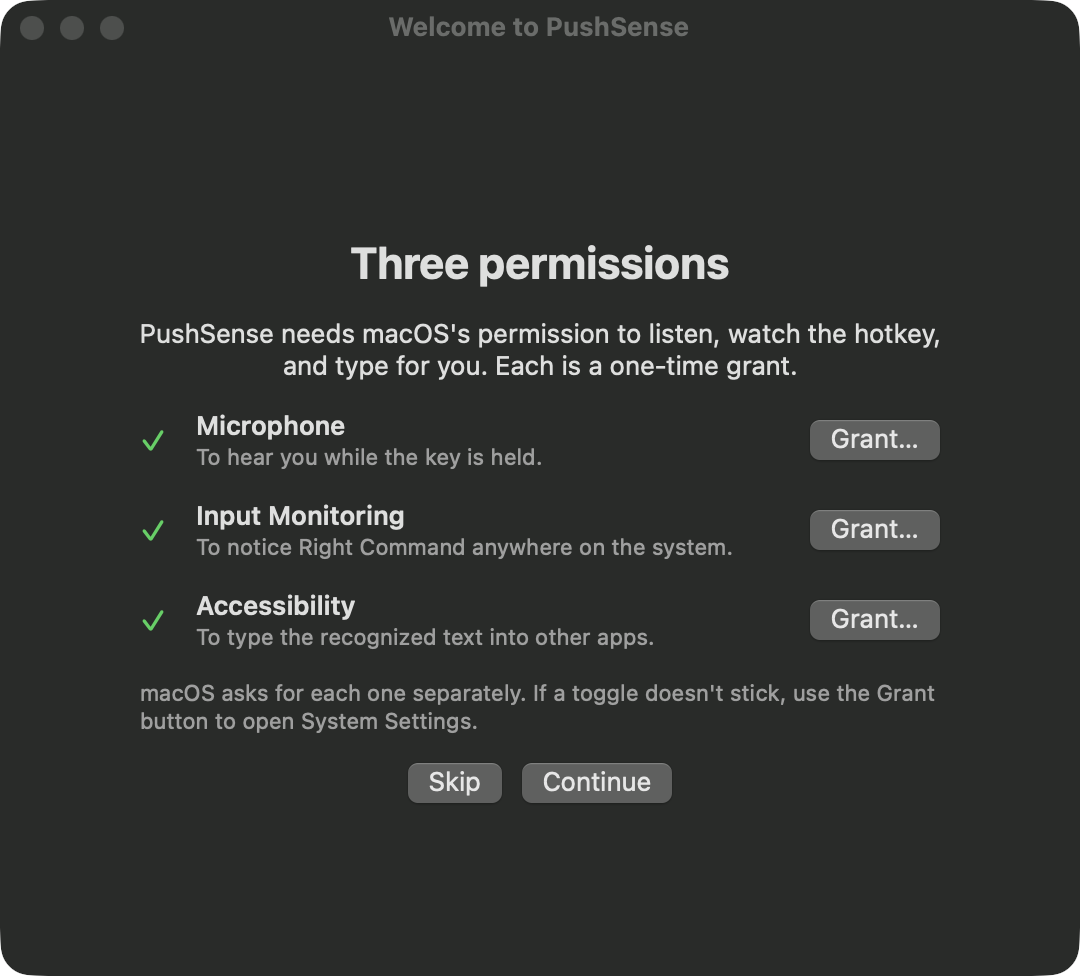
Grant three permissions
Microphone hears you. Input Monitoring sees the push-to-talk key in every app. Accessibility types the finished text into the field you are in. Each has a Grant button that opens the right System Settings pane.
- 03
Download a speech model and try it
Pick Small q5_1 (181 MB) for the recommended balance of size and mixed-language accuracy. Then hold Right Option in the tutorial's text box and say a sentence. From here on it works in any app.
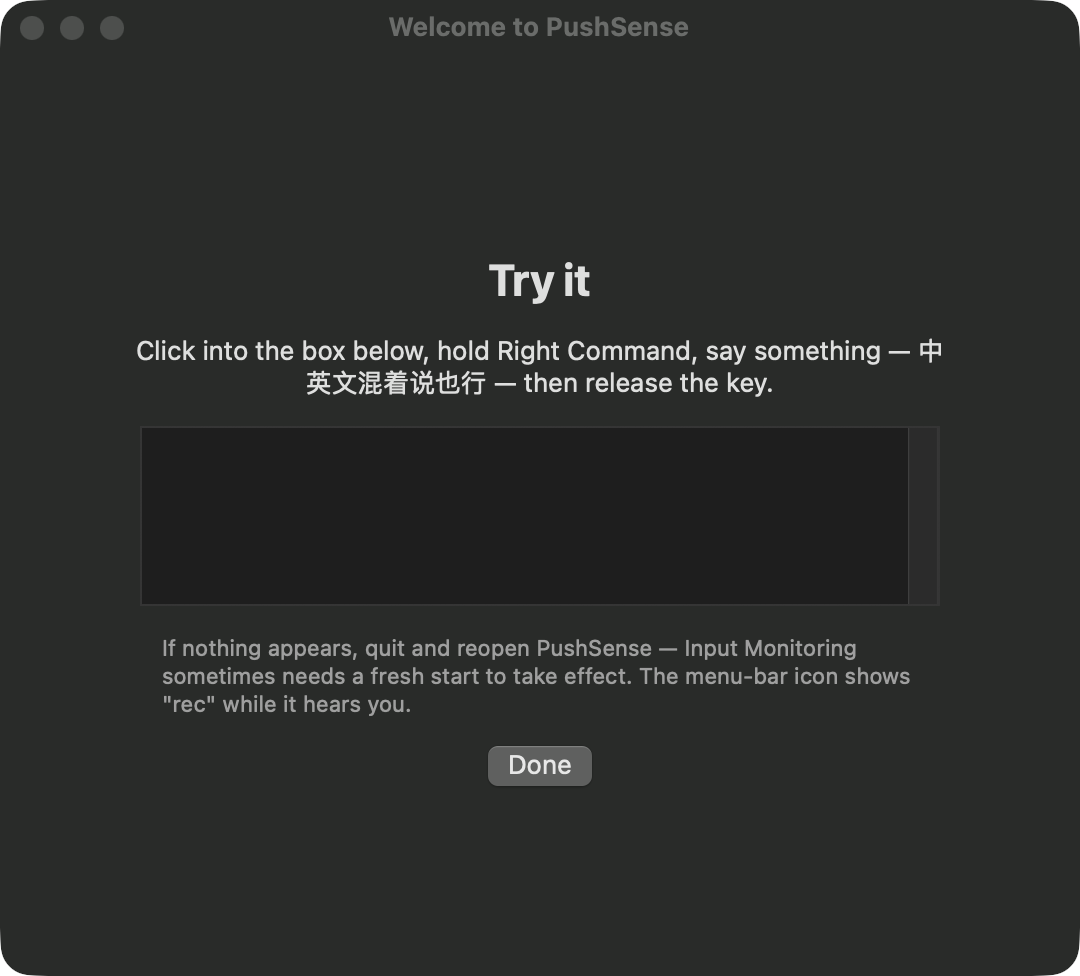
Want a different key, language, or paste behaviour? Every menu item is explained in the user guide.
Smart mode
Optional AI cleanup, local or with your own key.
Dictation stays local. Smart mode adds a second step: the transcript text goes to Local Ollama on your Mac, or to OpenAI or Ollama Cloud with your API key, and comes back with spelling, grammar, and filler words fixed. No spoken commands to learn.
- 01
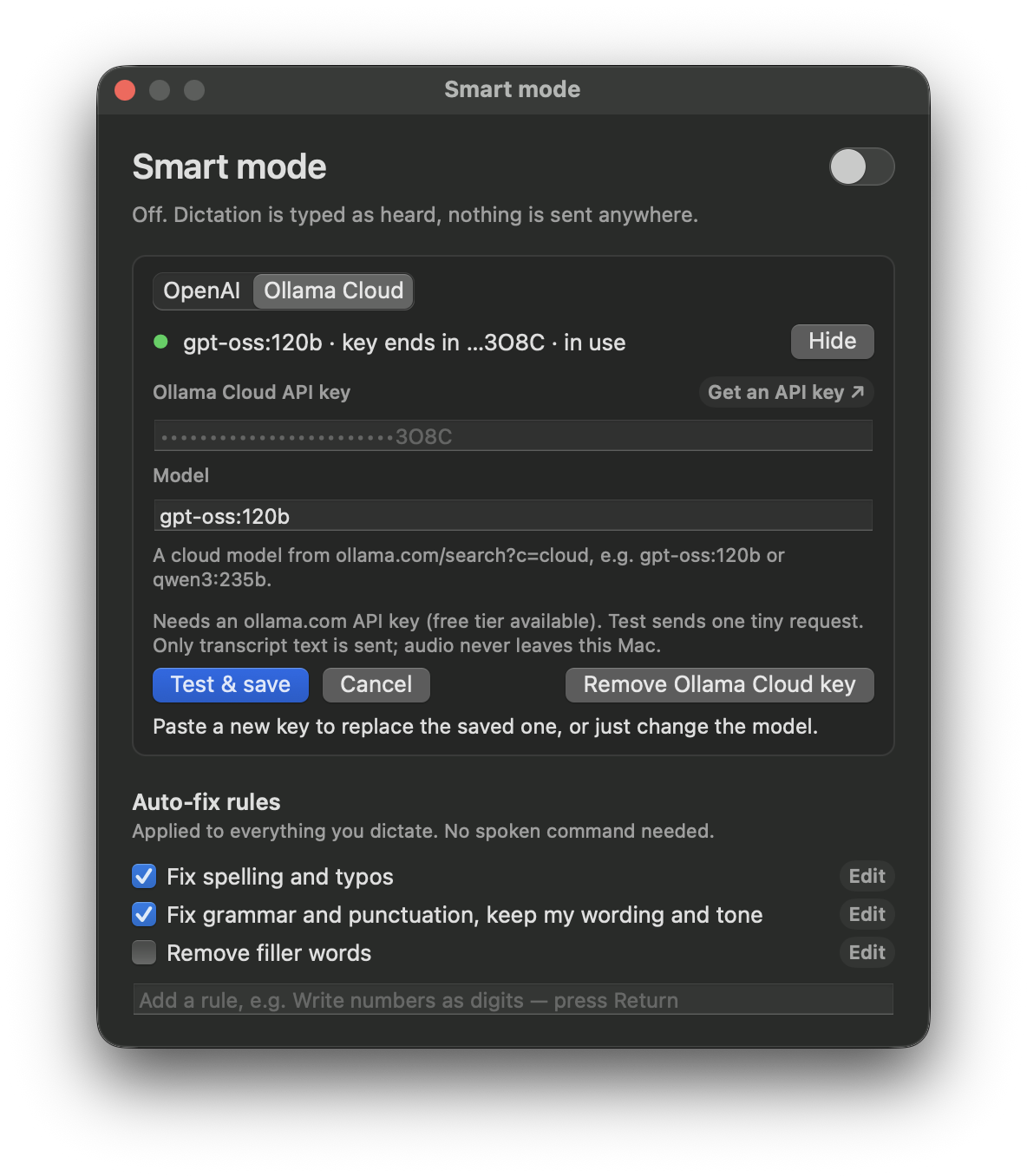
Connect a provider
Menu bar → Smart mode settings…. Pick Local Ollama if you have the Ollama app running with a model pulled: no key, and the transcript never leaves the Mac. Or pick OpenAI or Ollama Cloud, paste your key, and press Test & save. One tiny request confirms it works, the key goes into macOS Keychain, and Smart mode turns on.
- 02
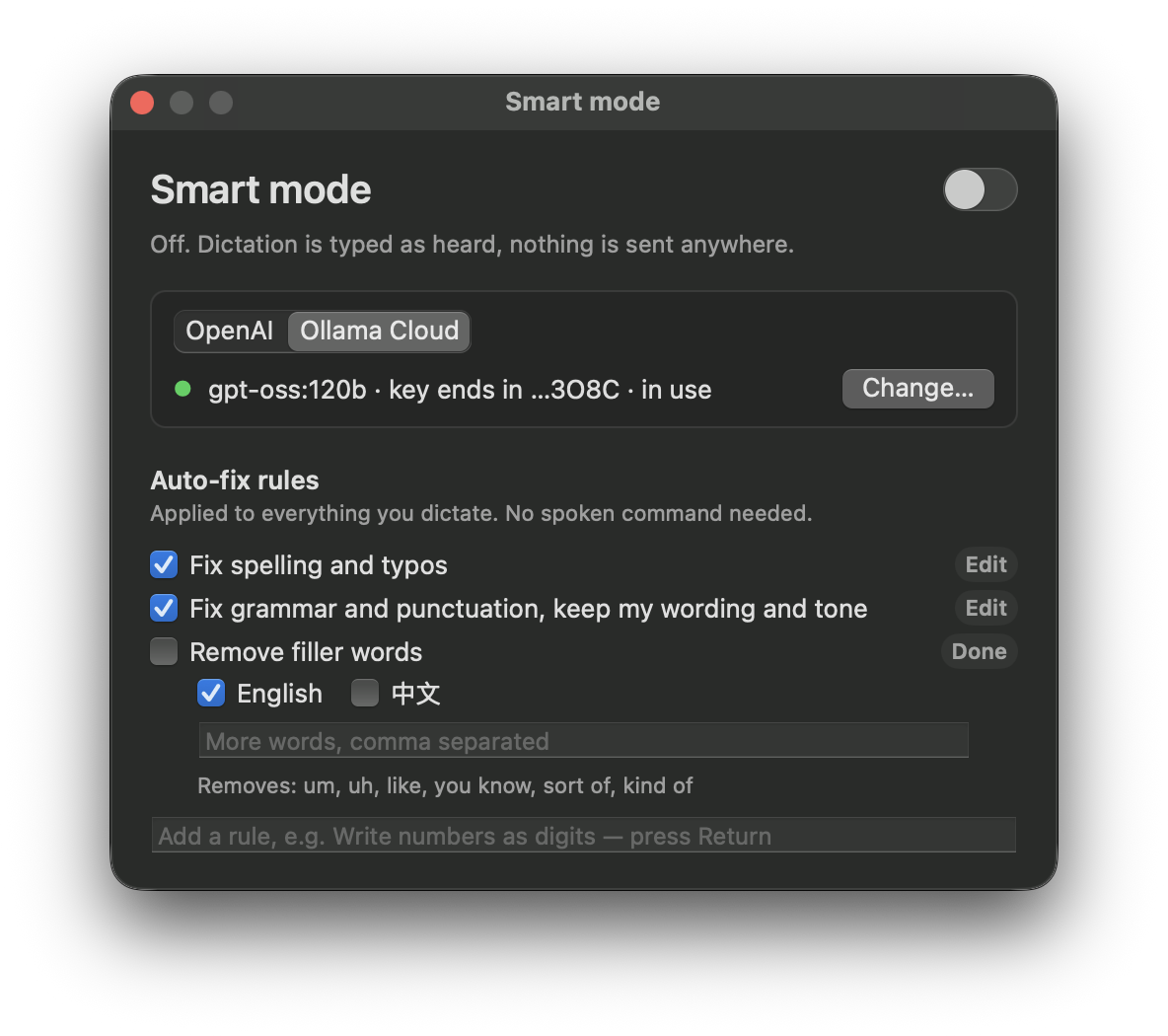
Pick your auto-fix rules
Spelling and grammar are on by default. Turn on filler-word removal and choose the languages you speak, or add a rule of your own such as "Write numbers as digits". Rules apply to everything you say.
- 03
Turn it off any time
Flip the Smart mode switch, or choose Output mode → Raw in the menu. With it off, nothing is sent anywhere. Your keys stay saved for next time.
From the feed
The short films.
What I posted to X, Instagram, and TikTok, kept here so they have a home. The salesman film mixes AI-generated scenes with a real screen recording of the app; the 0.2 demo is a screen recording with mocked-up windows.
Every clip is labelled with what is generated and what is recorded. If a scene looks too good to be a screen recording, it is not one.
Q&A
Before you install.
Something missing? Open an issue and I will answer there and add it here.
Is PushSense free?+
Yes. PushSense is free to download. There is no account, trial limit, or subscription.
Does PushSense upload my audio?+
No. Speech recognition runs on your Mac with whisper.cpp. The app downloads a model you choose, then transcription works offline.
Which Macs are supported?+
PushSense 0.2.4 requires macOS 13 or later and an Apple Silicon Mac.
Can I change the push-to-talk key?+
Yes. Right Option is the default, and the menu bar lets you switch to Right Command, Right Control, or Right Shift. PushSense uses a modifier you already have on the right side of the keyboard so it never collides with an app shortcut.
Why does it need Accessibility permission?+
Accessibility permission lets PushSense send the finished text as keystrokes to the field that already has focus. It does not replace your clipboard.
Which languages does PushSense support?+
The underlying Whisper models are multilingual and language detection is automatic, so you never pick a mode — including switching mid-sentence. Chinese and English are what I use daily and have tested; support for more languages is being verified and documented one at a time rather than claimed up front.
Which speech model should I use?+
Small q5_1 is the current recommendation. It is a 181 MB download and offered the best size-to-accuracy balance in the published mixed-language test.
What is Buddy mode?+
A small pearl that sits on your screen. Click it, talk, and the transcript waits in a glass bubble beside it instead of being typed anywhere. Drag the text into any window, or hover the bubble to copy or paste it. It is off by default; turn it on from the menu bar. The hotkey keeps working exactly as before.
Does dragging work in every app?+
Any window that accepts dropped text: editors, chat boxes, browser fields, Terminal, even the Desktop, where it becomes a text clipping. If a window refuses the drop, PushSense clicks where you released and pastes instead.
How long can I record?+
Each take is limited to five minutes in both hotkey and Buddy modes. At the limit, PushSense stops and transcribes automatically. Interrupted or unsaved takes remain as local WAV files under Recovered audio in the menu.
Where is the history kept?+
The last 50 takes live in a JSON file under Application Support on your Mac. Nothing is synced or uploaded. Hover the pearl or right-click it to open the list, and Clear history is at the bottom of every list.
What does "English 59% · 中文 39%" next to a transcript mean?+
Whisper decodes each take with one language. On a sentence that mixes two, it has to pick, and sometimes the whole sentence comes out in one of them. PushSense shows what the language detector heard so that when that happens, you know why.
What is Smart mode?+
An optional AI cleanup step for the transcript text. Use Local Ollama and nothing leaves your Mac, or your own OpenAI or Ollama Cloud API key. Audio never leaves your Mac either way. With Smart mode off, nothing is sent anywhere.
Do I have to say commands for Smart mode?+
No. Smart mode is a list of auto-fix rules: fix spelling, fix grammar and punctuation, remove filler words. Every enabled rule applies to everything you dictate. You can add your own one-line rules and edit the filler-word list per language.
Where is my API key stored?+
In the macOS Keychain, never in a plain file. Each provider keeps its own key and model, so you can set up OpenAI, Ollama Cloud, and Local Ollama and switch between them.